Gaming Laptop: Specs, Screens, Cooling, Value Guide & Online Shop
Shopping for a gaming laptop should be simple, yet it rarely is. Two laptops can look almost identical on paper, but feel worlds apart once you’re in a busy multiplayer match or loading a huge open-world game.
Find Gaming Laptops
The problem is that specs don’t tell the full story. One machine might have a strong graphics chip but weak cooling, so it slows down after ten minutes. Another might have a lovely high refresh screen, but not enough graphics power to make it matter.
This guide breaks it down in plain English. You’ll learn how to choose a gaming laptop that fits the games you actually play, your budget, and how often you’ll carry it around the UK. The best choice is usually balance, not the biggest numbers.
What makes a laptop good for gaming (and what does not)
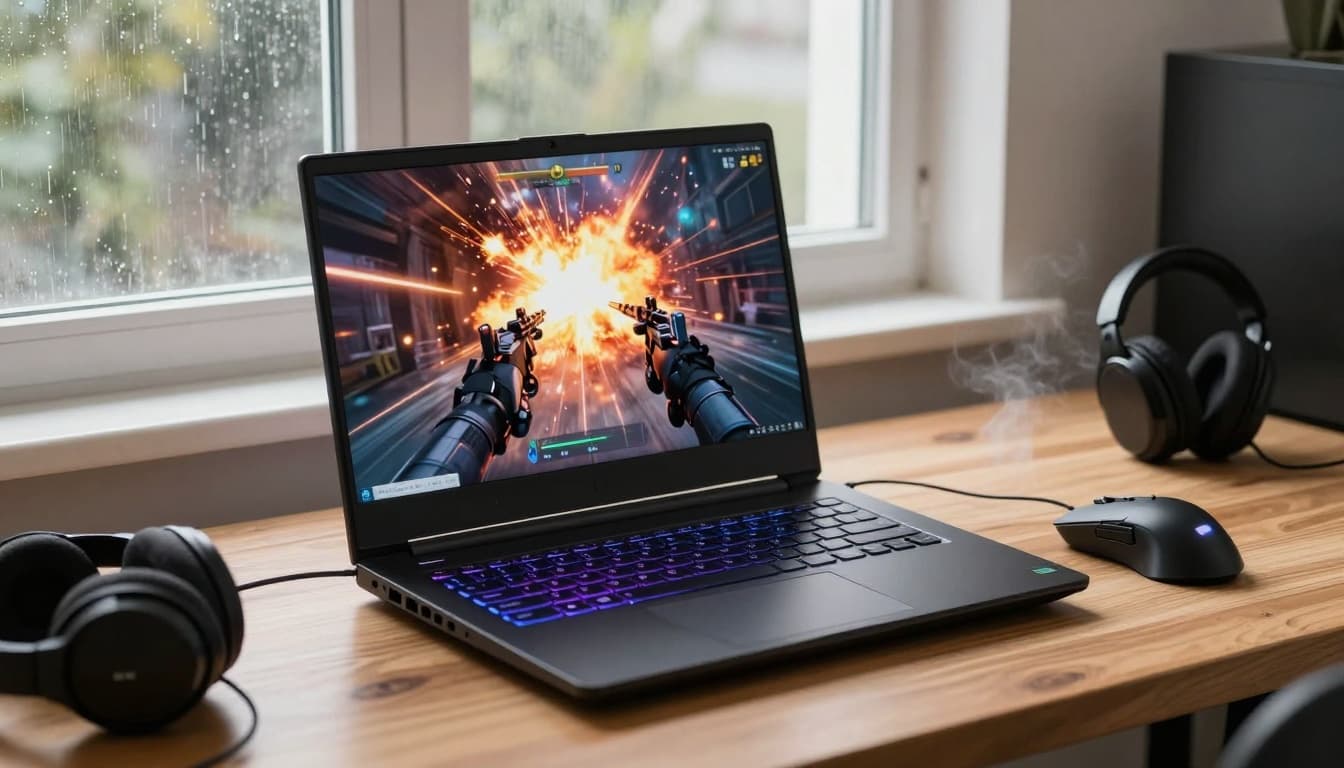 Gaming on a laptop at a home desk setup, created with AI.
A good gaming laptop is built to push high performance for long stretches. That needs three things most everyday laptops don’t prioritise: strong graphics, serious cooling, and enough power delivered consistently.
That’s why gaming laptops are often thicker, heavier, and louder than work machines. Fans need to move air. Hot parts need space. Chargers get bigger because the laptop can’t sip power like an ultrabook.
Set expectations early:
- Fan noise is normal in games, especially in “turbo” modes.
- Heat on the keyboard deck can happen, even on good models.
- Battery life while gaming is usually poor, gaming is meant to be plugged in.
- Weight can surprise you, add the charger and it can feel like a small suitcase.
Thin gaming laptops can still be powerful, but physics still applies. Slim designs often run hotter or louder, or both, when you’re pushing demanding games.
GPU, CPU, and RAM explained in simple terms
If laptop specs feel like alphabet soup, this is the bit that matters.
GPU (graphics processing unit): the main gaming engine. It draws the game world and has the biggest impact on frame rates.
CPU (central processing unit): the support brain. It handles game logic, physics, and background tasks. It matters more in fast competitive games, high frame rates, and streaming.
RAM (memory): short-term workspace. Too little RAM causes stutters, slow loading between areas, and annoying app restarts.
For most players, the GPU should get the biggest share of your budget. A flashy CPU paired with a weak GPU often disappoints in real games.
Here are sensible baseline targets to keep you out of trouble:
What you play mostGPU guidanceCPU guidanceRAM guidanceLight gaming (esports, older titles, indie)Discrete GPU with around 4 GB+ VRAMModern 6-core class16 GBModern AAA games (new releases, big worlds)Discrete GPU with around 6 GB to 8 GB+ VRAMModern 6-core to 8-core class16 GB (32 GB if you multitask a lot)
A quick reality check: if you plan to stream, record gameplay, or run lots of apps on a second screen, moving to 32 GB RAM can make the whole system feel calmer.
Storage and Wi-Fi: the specs people forget
Storage doesn’t boost frame rates much, but it changes how the laptop feels every day.
SSD vs HDD: an SSD makes boot times, game loading, and updates far faster. Most gaming laptops now use SSDs, and that’s what you want. A hard drive is mainly useful for cheap bulk storage, but it can feel sluggish for modern games.
Capacity matters because game installs are huge. For many people, 1 TB is the sweet spot, enough room for a handful of big games without instant storage juggling. If you start with 512 GB, plan for an external SSD, or make sure the laptop has an easy upgrade path.
Online gaming also needs stable networking. Wi-Fi speed isn’t the whole story, stability and low latency matter more than a top headline number. If you play competitive games, an Ethernet port (or a reliable USB-C Ethernet adapter) is still a simple way to reduce random connection issues.
Choose the right gaming laptop specs for your games and budget
It’s tempting to shop by parts alone, but the smarter way is to start with your use case.
- Esports and competitive shooters (where fast reactions matter): aim for high frame rates, a high refresh screen, and a CPU that won’t hold you back.
- Big single-player games (where visuals matter): prioritise GPU power, a good screen, and enough storage.
- A bit of everything: balance GPU and screen, and don’t skimp on cooling.
A key trade-off is that sharper visuals take more power. The higher the resolution, the harder the GPU has to work. The higher the refresh rate, the more frames you need to feed the screen.
1080p vs 1440p vs 4K: what to pick for smooth frame rates
Think of resolution like the number of tiles the laptop has to paint every single frame. More tiles means more work.
1080p (Full HD) is the best value for most gaming laptops. It’s easier to run well, which means smoother frame rates for the same money. It also pairs nicely with high refresh screens.
1440p (often called QHD) is a strong middle ground. It looks sharper, especially for single-player games and general use, but it needs more GPU power to keep frame rates high.
4K is niche on a laptop. It can look great, but it’s hard to run in demanding games without turning settings down. It also hits battery life and can push fans harder. For most people, 4K makes more sense on an external monitor than a laptop panel.
Also, screen size changes what you notice. On a typical 15-inch or 16-inch laptop, the jump from 1080p to 1440p is often more noticeable than the jump from 1440p to 4K, unless you sit very close or do creative work.
Refresh rate and response time: why 120 Hz or 144 Hz feels better
Refresh rate is how many times the screen updates per second. A 60 Hz screen updates 60 times. A 144 Hz screen updates 144 times. More updates can mean smoother motion and clearer tracking when you flick your aim or pan the camera.
A simple way to picture it: it’s like flipping through a notebook. More pages per second makes movement look less jumpy.
Two important points keep this grounded:
- A high refresh screen only helps if the laptop can output high frame rates in the games you play.
- Settings matter. Dropping a few graphics sliders can turn “pretty but choppy” into “smooth and sharp”.
Response time is how quickly pixels change colour. Lower is better, and it helps reduce blur in fast games. You don’t need to obsess over it, but if you mainly play competitive titles, look for reviews that comment on ghosting or motion clarity.
Do not ignore the build: cooling, battery, ports, and upgrades
Specs get you through the checkout. Build quality gets you through the next few years.
A gaming laptop lives a hard life. Heat cycles, fan dust, constant charging, and being moved from desk to sofa add up. Comfort matters too, especially if you type as much as you game.
Before you buy, think about the boring details you’ll feel daily:
- Keyboard and trackpad feel (you’ll use them outside games)
- Screen hinge and flex (a solid hinge travels better)
- Weight and charger size (commuting with it is different to owning it)
- Battery life for non-gaming use (meetings, lectures, travel)
A UK-friendly tip: when you first get the laptop, test it hard within the return window. Run a demanding game for an hour, listen to the fans, check surface temps, and see if it throttles. Keep the box and inserts until you’re sure it’s a keeper.
Cooling and noise: how to spot a laptop that stays fast
Gaming laptops can slow down when they get too hot. That’s thermal throttling, the laptop protecting itself by reducing performance. It’s not a rare flaw, it’s a design challenge.
Signs a laptop is more likely to stay fast:
More airflow: larger vents and a clear intake path help a lot. If the underside is sealed and the vents are tiny, expect higher heat.
More room inside: thicker chassis can fit bigger heat pipes and fans. Thin can work, but it has less margin.
Higher sustained power limits: two laptops with similar parts can perform very differently based on how much power they can hold over time.
Useful fan modes: being able to choose quiet, balanced, and performance modes helps you match noise to the moment.
When reading reviews, prioritise those that test sustained performance, not just quick benchmarks. A ten-minute test can hide a laptop that fades after thirty.
Ports and connectivity checklist for gaming setups
Ports aren’t exciting until you don’t have the one you need. A gaming laptop often becomes a home setup, plugged into a monitor and peripherals, then unplugged for travel.
Look for the basics that fit your setup:
- USB-A: still the easiest port for a mouse, controller dongle, or headset receiver.
- USB-C: useful for docks, fast external SSDs, and sometimes charging (check if it supports it).
- HDMI (or similar display output): for an external monitor or TV.
- 3.5 mm audio jack: handy for headsets and simple speakers.
- Ethernet: great for stable online play, nice to have.
- SD card slot: optional, more useful for creators than gamers.
An external monitor can be the best home upgrade. It gives you a bigger screen, better posture, and often better motion clarity, while the laptop handles the heavy lifting.
Smart ways to save money on a gaming laptop in the UK
Overspending on the wrong spec hurts more than buying a slightly slower machine. The trick is to spend where you feel it, and cut what you won’t notice.
Start with a budget, then split it like this:
- Put most of it into the GPU tier that matches your games and target resolution.
- Choose a screen that fits that GPU, rather than paying for panel specs you can’t drive.
- Pay attention to cooling and build, because that affects performance over time.
Also budget for the bits people forget: a decent mouse, a headset, and maybe an external SSD. If the laptop runs hot, a simple cooling pad can improve comfort.
New vs refurbished: when refurbished makes sense
Refurbished can be a great way to get more performance per pound, especially if you want a stronger GPU tier without stretching your budget.
Look for a refurbished listing that’s clear about:
Condition grading: you want an honest description of marks, screen condition, and accessories included.
Battery health: batteries wear, and a tired battery can be annoying even if you game plugged in.
Warranty and support: a proper warranty matters more than a small price drop. Aim for meaningful cover, not vague promises.
Return policy: you should be able to test thermals, noise, and screen quality at home.
Refurbished makes the most sense when it’s backed by solid warranty support. Otherwise, the savings can disappear fast if something goes wrong.
Common mistakes that waste money (and how to avoid them)
These are the traps that catch buyers again and again:
- Paying extra for 4K on a small laptop screen, then running games at lower resolution anyway.
- Buying a high refresh screen, but not enough GPU power to reach those frame rates.
- Choosing too little storage, then juggling installs and updates every month.
- Ignoring weight and charger bulk when you plan to travel with it.
- Skipping warranty checks, then finding support is limited when a fault appears.
A simple rule: buy for the games you play most, not the one you might try once.
Conclusion: pick a gaming laptop that fits your life, not just the spec sheet
A good gaming laptop comes down to matching the GPU level, screen choice, and cooling to your real use. Once those are right, the rest falls into place.
Before you buy, write down your top three games, your target (smooth play or ultra settings), and where you’ll use the laptop most (desk, sofa, commuting). That small bit of planning saves money and frustration.
Final checklist to confirm before buying:
- The GPU level matches your target resolution (1080p, 1440p, or 4K).
- RAM is 16 GB minimum, and upgrade options are clear if you need more.
- Storage is enough for your library, 1 TB is a comfortable starting point.
- Reviews confirm good sustained performance, not just short bursts.
- Fan noise and surface temps seem acceptable for your space.
- Ports cover your setup (USB-A, USB-C, HDMI, audio, plus Ethernet if you care).
- Weight plus charger feels realistic for travel.
- Warranty and returns are strong enough to buy with confidence.
Shop Gaming Laptops
Shop Electronics and Tech from Trusted UK Retailers
TV’s Mobile Phones Laptops Smart Watches
iPhones - iPads - Apple Watches - Macbooks
Looking to protect your purchase? Explore appliance and gadget insurance options here.
Home Appliances Insurance– Gadget Insurance – Phone Insurance
–
Explore More Buyers Guides & Money Saving Tip
For a list of our main buyers guides use the drop-down menu at the top of the page. Topics related to this article are:
Kitchen Appliances Buyers Guides
–


Comments
Post a Comment